
Do you use Content Cal as a publishing platform for social media content to one or multiple Instagram accounts? Then maybe you are aware or familiar with the ability to use Zapier to direct publish via Buffer to your the Instagram accounts you manage.

I think anyone who has or currently manages social media account will agree that the ability to direct publish to Instagram using your current social media publishing tool of choice (e.g. Content Cal, AgoraPulse, Buffer, Hootsuite, etc.) is a huge time saver. Especially in today’s technology driven instant gratification societal mindset. Unfortunately, there are still some common errors users will likely experience in setting up their direct publishing on Instagram workflow utilizing the Zapier Integration App to connect Content Cal with Buffer.
I’ve written this short article to highlight these 3 common errors with the intent of expediting the process of resolving these common errors and act an additional resource to whatever guides you may find on Buffer and Zapier for addressing these errors. I understand that workflow efficiency is extremely valuable, both from a monetary and time-saving standpoint, for anyone who manages one or multiple social media accounts. In addition, I also understand that any time spent debugging work flow issues on social media publishing tools could be better spent researching and crafting engaging content and staying up to date with social media best practices. I hope you find this resource valuable in saving you time and effort and you will be able to troubleshoot and resolve these errors on your own without the need to reach out to Buffer or Zapier support via email.

1. Using incorrect Instagram image aspect ratios on Buffer
Below is a screenshot of the error that Buffer should prompt if your image aspect ratio is incorrect.

Instagram REQUIRES that you follow their image aspect ratios(image below) in your post on ContentCal.io, Buffer, or any other social media publishing platform in order for the post to publish. In the event you don’t follow these guidelines you will need to login to your Buffer account on a desktop to see this particular error. Buffer has not made it possible to view this common error on its mobile application yet. Another thing to note: Make sure to crop your image slightly larger or smaller than the aspect ratios below because image cropping tools (e.g. Adobe Photoshop) aren’t pixel specific and your image aspect ratio might still fall outside Instagram’s very specific parameters and prevent the post from auto-publishing on Instagram.

2. The Instagram account is NOT properly connected on the Buffer mobile app
I’ve provided a screenshot of the error message you will see on the desktop version of your Buffer Account. You will continue to receive this error messages for your posts to Instagram via Buffer until you have downloaded the app to your mobile device and connected it to your mobile device. As long as this error occurs the direct publishing setup for the Instagram account you manage on Content Cal will not work.
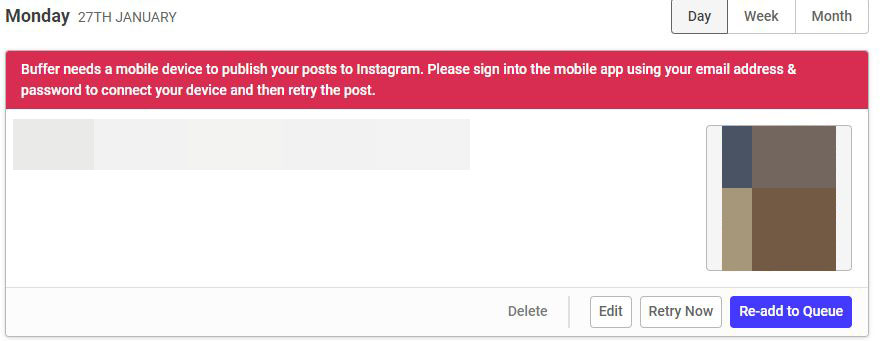
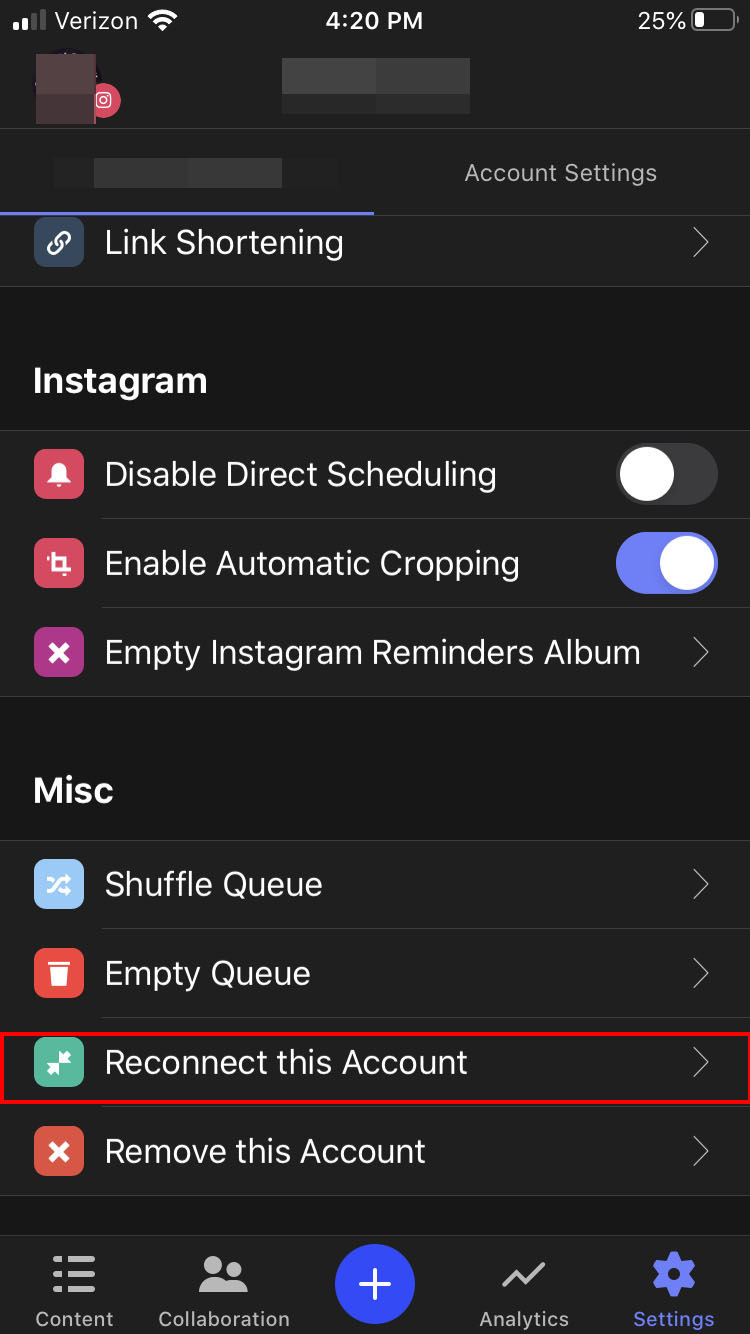
This slideshow below provides a screenshot of the app for download on the Iphone as well as where to find and connect your Instagram account on the Iphone app after logging in.

3.The Zap is NOT turned in your Zapier Account
Always be sure to check that all of your zaps are turned off by simply clicking the toggle button to turn from gray to green as seen below. In my experience I have found that these will inadvertently turn off every once in a while and need to be checked to make sure they are on or you will have a failed post to Instagram from your auto-publish channel on ContentCal.io

If you found this short error guide helpful in determining the reason your posts are not auto-publishing on any Instagram accounts you manage on Content Cal please share in the comments below. I also welcome any feedback that will improve the visualization or verbal explanation of this guide. Please feel free to share this guide on social media as a resource for others to use.


